Sunday, August 16, 2009

How to fix "Missing or corrupt NTFS.sys" error in Windows XP

One of my XP SP2 computers at home crapped out today with the error “Missing or corrupt Ntfs.sys” and would not get past the initial BIOS screen. I eventually got it back up and running without having to format the computer, but it took a little while and it wasn’t super straightforward. So if you are getting this error, here are the steps you can take to fix it.

The exact error message that you get from Windows is:

Windows could not start because the following file is missing or corrupt: System32\Drivers\Ntfs.sys


When you do a search in Google for ntfs.sys is missing or corrupt, the first result is from Microsoft Support. In particular, it states you might get this message when you convert your hard disk from FAT to NTFS. That was not the case in my situation. I tried to run defragmenter and it froze in the middle. After restarting, I got this message.

I’ll explain their method first (which did not work for me) and then two other methods to fix this issue.

Use the Recovery Console to replace Ntfs.sys

Pop in your CD into the computer and boot off the CD when prompted to “Press any key to boot from CD“. When the Welcome screen appears, press R to select the To repair a Windows XP installation using Recovery Console, press R option.
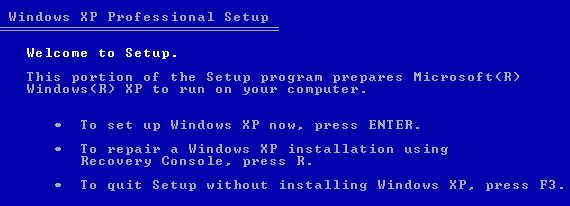
repair installation

Next, type the number for the installation you want to logon to from the Recovery Console. You’ll also need to know the administrator password in order to get to the command prompt.
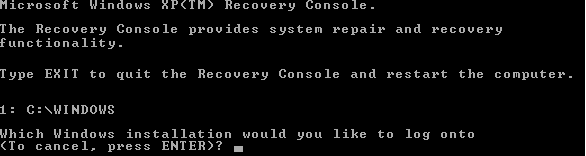
recovery consol

Now that you are at the command prompt, you need to enter in the following DOS commands, pressing Enter after each one:

cd \windows\system32\drivers
ren ntfs.sys ntfs.old

This basically renames the current ntfs.sys file to something else so that we can replace it with a new one that hopefully is not corrupted. Now type in the following command:

copy cd:\i386\ntfs.sys drive:\windows\system32\drivers

Where cd is the drive letter for the CD-ROM drive that has you Windows XP CD, and drive is the drive where you installed Windows XP (most likely C:).

That’s it! Now go ahead and remove the CD and type quit. Go ahead restart your computer and see if you are able to log back into Windows!

Fix Ntfs.sys error by using CHKDSK

For some reason the above-mentioned method did not work for me! I think it was because the file itself was not an issue, but that there were some problems with the hard drive itself. So after trying to copy the new Ntfs.sys file from the CD and that not working, I thought I would try to run CHKDSK.

You can run CHKDSK from the Recovery Console itself. So you would follow the same instructions as mentioned above, but instead of typing in the three DOS commands above, you would type in the following at the command prompt:

CHKDSK /R

The /R is a command line switch that says to repair any errors that are found on the hard disk automatically. CHKDSK can take quite some time to run, so be ready to wait. It took about 30 minutes on my computer.

Luckily for me, there were several errors on the disk and CHKDSK fixed them all. I restarted the computer and Windows loaded fine, no missing ntfs.sys error!
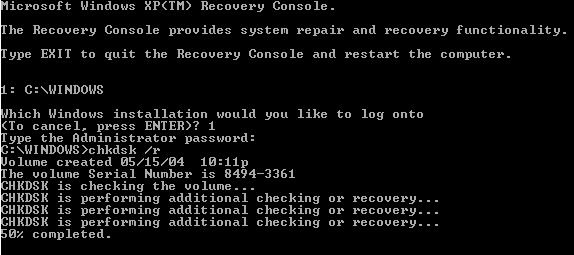
chkdsk

Repair Ntfs.sys by doing a repair install of Windows XP

If none of the above-mentioned methods worked, you can try to do a repair install of Windows XP, which basically replaces all of the Windows system files. Your applications and settings will remain intact, but you will have to reapply all Windows updates.

Doing a repair install is pretty easy, the starting steps are the same as for getting into the Recovery Console, but instead of pressing R to repair, you press Enter to setup Windows.
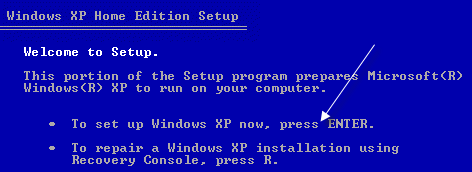
setup windows

Then you simply select the installation you want to repair and press R to start the repair.
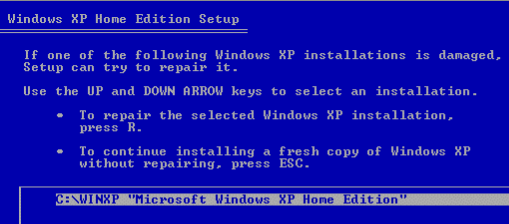
repair install

Note that it may look like Windows is actually re-installing a fresh copy of itself, but this is not the case! You’ll see the install screens like if you were to do a fresh install, but don’t worry, you’ll still have all of your applications, settings, and data.

Hopefully you now have a working computer! If you are getting stuck somewhere, etc, post a comment and I’ll try to help you out! Good luck!

[tags]ntfs.sys, fix ntfs.sys error, missing ntfs.sys, missing or corrupt ntfs.sys, corrupt ntfs.sys[/tags]

Tuesday, May 5, 2009

Easy Money on Click to Pay Sites!

We do not have lots of things to do this summer, so why not make money? All you have to do is to click ads and view the page for about 5-30 seconds and then you'll be paid. Minimum cashout depends on the site, some offers a very low cashout of 1-2$, while some ranges from 7-10$.

First step is to create an account at paypal.com or alertPay.com its free. Your payment will be sent through your paypal or AlertPay account.

Then, create an account for free at any of these sites, you can also create account at all of these sites for you to earn more money. More pay per click site accounts = more money. But, you must have only one account per site.

Click here to create your AlertPay.com account


Earn money with AlertPay

Last is to click ads, or read emails, or play game, or sign up to any site to earn money. it's easy, and it's real! Create your own account now and start earny dollars!


WordLinx - Get Paid To Click


Monday, March 9, 2009

Understanding Web Hosting

If you want to own a website, then you have to definitely think about web hosting too. A website contains a collection of web pages and can be referred as computer files which usually contains text files and pictures. These files will have to be stored in a super computer along with high speed internet connection. These computers are known as servers. All your files will be put on the servers. It is the web hosting providers who provide such services. It is the web hosting company who are responsible to host your website. The servers which contain the files are located in a particular place called data center. A data center is in the form of a room or a building. It is here were fast internet connection to servers is provided. It also provides security entrance, fire protection, electricity backup etc. One must understand that a server is quite different from a personal computer. A personal computer may have 1 processor, 1 hard disk drive and 1 power supply but a powerful server will usually have 2 or more processor. This facilitates the server to work faster and process more applications at the same time. Hence, websites are always hosted on servers and not on personal computers.

You don’t have to invest huge money on endure technical issues in order to build and maintain your web hosting infrastructure. In a traditional hosting account, you would be allowed to host only 1 domain per hosting account. This would be considered as a waste of your money because most of the time you will not be using more than 10% of your given disk space and bandwidth. This will happen because hosting accounts today usually come with very large disk space and bandwidth. It will be unfair to still pay more for more domains when you have plenty of disk space left. So, I must say that the future of web hosting can be related to multiple domain hosting. By using multiple domains hosting, you are actually making full use of your disk space and bandwidth.

In today’s times, the most common level of web hosting is shared hosting or so called “virtual hosting”. Based on the speed of the server, it can easily host more than 1000 websites without any problem. In this case, the users who are using the same server will share the same resources of it. Example: disk space, bandwidth, memory etc. This technique makes the hosting affordable because you end up paying only a portion of the server fee instead of the entire server. It is estimated that over 95% of websites of the internet are usually hosted on shared hosting environment. There is also another concept of so called “dedicated server” where you can choose to rent the entire server for your own use. Also, there are times when you can share a server with another user and this means that you are using a semi dedicated server. In the case of a managed hosting which is also called as dedicated hosting, you will rent the server from the web host. You are not the owner of the server. If you choose to buy a server instead of renting it then you will have to place it in a data center. It all depends upon your web hosting requirement.
Source: WebHosting Geeks